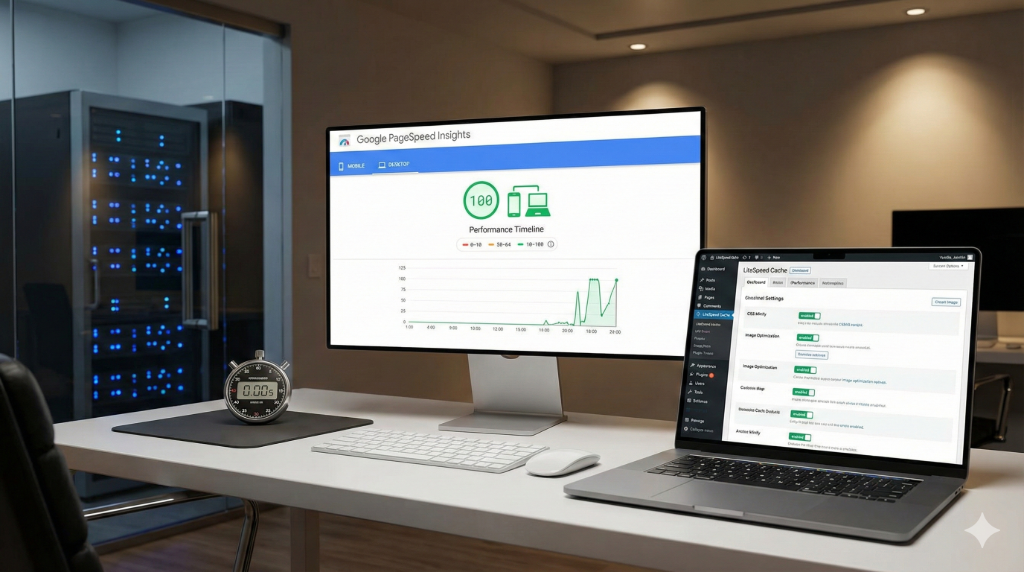
The difference between a 99 and a 100 on Google PageSpeed Insights often feels like chasing a ghost. You’ve enabled the plugin, flipped a few switches, and stalled out in the high 90s. The last few points require a minimalist’s approach: ruthlessly eliminating bloat and optimizing your cache strategy down to the millisecond.
LiteSpeed Cache (LSCache) is arguably the most powerful performance plugin in the WordPress ecosystem, but its sheer complexity can be daunting. Achieving a perfect score isn’t about enabling every feature; it’s about understanding the core philosophy of a high-speed site: serving the simplest, smallest file to the client as quickly as possible. This requires a specific set of rules for managing Time-To-Live, user caching, and image delivery.
Cache Optimization Rules (Set It and Forget It)
The biggest performance gain LSCache offers is its server-level caching. Unlike PHP-based caching, LSCache talks directly to the LiteSpeed server, minimizing backend overhead. The goal here is to make the server do the heavy lifting only once, then lock the resulting page in a secure vault.
The Time-To-Live (TTL) Strategy (Why a Longer TTL Saves Resources)
Time-To-Live (TTL) dictates how long a page remains in the cache before LSCache considers it stale and rebuilds it. Your default TTL might be 600 seconds (10 minutes), meaning your server runs a resource-intensive PHP process every 10 minutes, even if the content hasn’t changed. This unnecessary work consumes server resources and can cause speed dips.
For most stable content, like articles and landing pages, you should aim for a much longer TTL, ideally 604800 seconds (one week) or even more. Longer TTLs dramatically reduce server load because pages are rebuilt only after content updates or a scheduled expiry, leading to:
- Less CPU usage and lower hosting bills.
- Fewer requests hitting PHP/MySQL, leading to faster execution times.
- A higher cache hit ratio, meaning more users get the instantly-served HTML page.
The Single-User Principle (Why Cache Logged-In Users Must Be OFF)</HFF
The “Cache Logged-in Users” setting often seems tempting, but for a public-facing site, it is a dangerous trap. When a user logs in (e.g., an administrator or a commenter), the cache serves them a highly individualized, custom version of the page, including greetings, toolbars, and unique session data. Caching these unique pages will quickly inflate your cache storage and introduce security and privacy risks.
For high-performance public sites, this setting must be OFF. You want every visitor to receive the same, globally optimized, static version of the page. The slight inconvenience of a logged-in user having a slower experience is a small price to pay for 100% score stability for the vast majority of your traffic.
The Mobile Cache Trap (When to Keep Cache Mobile OFF)
LSCache offers a separate mobile cache, which is essential if you use a dedicated mobile theme (e.g., WPtouch) or have dramatically different HTML/CSS structures for mobile devices. However, if your theme is truly responsive (which every modern theme should be), the HTML structure is identical across desktop and mobile; only the CSS changes. In this common scenario, keeping the “Separate Cache for Mobile Devices” setting OFF is better. Why? It halves your cache size and reduces the processing required to manage two separate pools of static files, simplifying your setup and increasing overall server efficiency.
Avoiding Bloat The WebP & Image Strategy (The Minimalist Way)
Even a perfectly cached page can be crippled by slow image loading. LSCache offers robust image optimization, but the absolute best strategy involves minimalist preparation before the upload.
The Core Rule: Upload WebP Directly (Why Pre-Optimizing is Superior)
Many performance tools convert images to WebP on the fly, storing the originals and generating a new file format. This is inefficient. The core rule for achieving zero image-related bloat is to upload WebP images directly.
If you use an external tool (like Squoosh or your local image editor) to convert images to WebP before uploading to the WordPress Media Library, you eliminate the need for LSCache to run background conversion tasks and store the original large file. This saves server processing time, reduces storage, and ensures the fastest possible image delivery, contributing directly to a low Total Blocking Time (TBT).
Why We Skip the External Cloud Service (QUIC Cloud) (Avoiding unnecessary dependencies)
While the LiteSpeed ecosystem often pairs with QUIC Cloud for CDN, Critical CSS generation, and image optimization, relying on it introduces unnecessary external dependencies for minimalist sites. For a site prioritizing a 100 PSI score, external cloud services can add a slight latency cost—even if that service is technically fast—due to the extra DNS lookup and connection handshake.
By handling Critical CSS generation locally within LSCache and serving pre-optimized WebP files from your origin server, you maintain maximum control and minimize connection dependencies. This local-first approach simplifies the delivery chain, making diagnostics easier and reducing the chance of external server issues impacting your speed.
The Performance Gain: How Local WebP Upload Contributes to a 0ms Total Blocking Time
The most crucial Web Vitals metric affected by image strategy is Total Blocking Time (TBT). TBT measures the delay before a page is ready to respond to user input. If LSCache has to generate and manage image conversions or if the browser has to request images from a third-party server, TBT increases.
By serving native WebP images, the browser fetches a tiny file that it processes instantly. This efficiency means JavaScript execution isn’t delayed waiting for image assets, virtually guaranteeing a near 0ms TBT—a non-negotiable requirement for hitting that perfect 100 score.
Final Cleanup: Minification and Bloat Removal
Once caching and images are under control, the final steps involve shaving off milliseconds by cleaning up the code served to the client. This is pure digital decluttering.
Combining and Minifying HTML, CSS, and JS Files
LSCache’s optimization tabs allow you to Minify and Combine your assets. Minification removes whitespace and comments, reducing file size. Combining merges multiple small files (like 10 CSS files) into a single large file, which reduces the number of HTTP requests the browser must make.
This process is crucial for improving the Largest Contentful Paint (LCP), as the browser can load critical styling and scripts faster. However, be cautious: combining too aggressively can sometimes lead to broken functionality. Test minification settings one-by-one, always checking the site after each change.
Removing WordPress Bloat (Disabling Emojis and Unnecessary Scripts)
WordPress is infamous for including small pieces of non-essential code that subtly drag down your score. LSCache provides toggles to disable these features, which are necessary for achieving peak performance:
- Disable WordPress Emojis: This prevents WordPress from loading a separate JavaScript file (`wp-emoji-release.min.js`) just to support emojis, saving an unnecessary request.
- Remove Query Strings: This removes version numbers from static resources (e.g., `style.css?ver=1.2`), allowing browsers and proxies to cache them more reliably.
- Lazy Load Images: Ensure this is enabled (though WordPress now supports native lazy loading) to only load images as they scroll into the viewport, accelerating initial page load.
Validating the 100% Performance Score
The 100 score is not the destination; it’s a validation that your site meets the highest standards of web performance. You need to know what metrics you are actually optimizing.
Measuring Success (LCP, TBT, and CLS)
Achieving a perfect score means hitting excellent marks across all three Core Web Vitals:
| Metric | Goal (Excellent) | LSCache Optimization Focus |
|---|---|---|
| Largest Contentful Paint (LCP) | < 2.5 seconds | Critical CSS generation, Minification, Caching HTML instantly. |
| Total Blocking Time (TBT) | < 200 milliseconds | Disabling unnecessary scripts (emojis), serving native WebP images. |
| Cumulative Layout Shift (CLS) | < 0.1 | Lazy-loading settings (with proper dimensions), ensuring fonts are pre-loaded. |
The Final Payoff: A Site That Doesn’t Fight Your Content
When all these steps are executed—long TTLs, zero logged-in user cache, native WebP, and aggressive bloat removal—your site essentially becomes a static HTML file delivered at the speed of the server. The final payoff isn’t just the 100 score; it’s a site that doesn’t fight your content. It means your users see your message instantly, stay longer, and convert more reliably. This philosophy of minimalist configuration is what separates a good caching setup from a perfect one.
Resources for Speed Testing and Auditing
Use these authoritative tools to audit your performance and confirm your LSCache configuration is delivering maximum speed:
- Google PageSpeed Insights – The ultimate authority for Core Web Vitals and field data analysis.
- GTmetrix – Excellent for Waterfall analysis, which helps diagnose request dependencies and loading order.
- WebPageTest – Highly technical tool for running tests from different global locations and measuring first-byte time.
