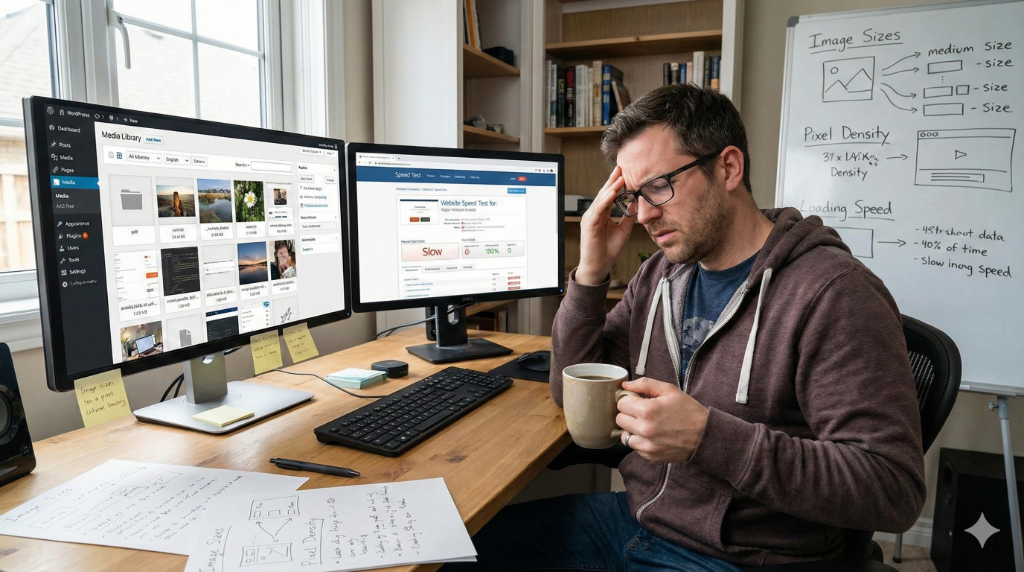
You’ve spent hours writing the perfect post, and you found the ideal, high-resolution photo to go with it. You upload it to your WordPress site, and suddenly, your blazing-fast loading time crawls to a halt. The culprit isn’t your hosting; it’s likely your image sizing—a detail often overlooked but critical to performance.
Mastering image sizing in WordPress isn’t just about making your photos look good; it’s about respecting your user’s bandwidth and satisfying Google’s speed requirements. The truth is, how your theme handles your uploads is more complicated than what those few settings fields suggest.
Understanding the Digital Canvas and Aspect Ratio
Before you even click the “Add Media” button, you need to understand the fundamental difference between image dimensions and aspect ratio, and which one truly dictates the user experience. You might be surprised to learn that one matters more than the other.
Dimensions Versus Aspect Ratio
When you talk about an image’s dimensions, you are referring to its absolute pixel count (e.g., 2000px wide by 1000px high). This dictates the file size and quality. Aspect ratio, however, is the proportional relationship between the width and height (e.g., 2:1 for a 2000×1000 image). So, what’s more important?
The aspect ratio is your most critical element. If your theme expects a 16:9 thumbnail and you upload a 4:3 image, the theme will usually crop it awkwardly to force the ratio, often clipping off the most important part of your image. Understanding the required ratio for a featured image slot is your first step to visual success. If the ratio is wrong, no amount of resolution will save your aesthetic.
The Speed Imperative for Loading Time
The moment you upload a massive 5MB photo from your professional camera, you are asking the user’s browser to download five times the data it actually needs. This directly impacts your loading time. Google judges page speed harshly, and slow-loading images are the number one drag on performance.
The solution is simple: resize locally before uploading. Don’t rely on WordPress to scale down a 5000px image to 800px; you still carry the weight of those extra pixels. Optimize the file format and reduce the dimensions to just slightly larger than the largest size your theme will display.
How Themes Manipulate Your Media Sizes
WordPress offers default media settings for “Thumbnail,” “Medium,” and “Large,” which you can adjust in the settings panel (Settings > Media). However, this only defines the *maximum* size WordPress will generate. The theme you install is the true master of media. It uses its own custom logic and image registration functions to define the exact sizes needed for its specific layouts. This process often overrides or adds to the default sizes.
| Setting Name | Typical Default Size | Purpose |
|---|---|---|
| Thumbnail Size | 150px square | Gallery previews, widget icons, smallest featured image call. |
| Medium Size | 300px wide/high (max) | Standard inline images for smaller screens (e.g., mobile). |
| Large Size | 1024px wide/high (max) | Primary content images for desktop display. |
Theme Deep Dive: Featured Image Requirements
To truly master image sizing, you must look beyond the general settings and adhere to the custom sizes defined in the theme’s functions.php file. These are the dimensions that avoid cropping and ensure perfect fit across different templates and screen sizes.
| Theme & Slot | Required Dimensions | Aspect Ratio | Notes |
|---|---|---|---|
| Twenty Sixteen (Post List Featured Image) | 709px x 473px | ~3:2 | This is the size used in the main blog roll, ensuring a consistent look for classic themes. |
| Twenty Sixteen (Header Image) | 1200px x 280px | ~4.3:1 | Extremely wide and short. Uploading a standard photo here will result in severe vertical cropping. |
| Astra (Featured Image – Blog Layout) | 768px x 432px | 16:9 | While fluid, Astra often targets this 16:9 ratio for mobile-first consistency at the 768px tablet breakpoint. |
Astra Theme’s Fluid Approach: Astra’s strength is its responsiveness. It uses these dimensions as optimal breakpoints, but relies on CSS to fluidly adjust the image within its container. If you upload an image slightly wider than the required width (e.g., 1200px wide), the theme will generate all the necessary smaller sizes while maintaining the specified aspect ratio (like 16:9), giving the browser the best-sized file to choose from for the user’s device.
The File Format Face-Off
The quality and efficiency of your images aren’t just about pixels; they’re also about the container format you choose. Selecting the correct format can save hundreds of kilobytes per image.
Image Format Comparison: Speed and Quality
| Format | Compression Type | Best Use Case | Notes |
|---|---|---|---|
| WebP | Lossy & Lossless | Photos, complex graphics, general use. | Modern champion, offers 25-35% size reduction over JPEG. Supports transparency. |
| JPEG | Lossy | Photographs, images with many colors and gradients. | Good compression, but quality degrades with each save. Does not support transparency. |
| PNG | Lossless | Logos, graphics, screenshots, images with transparent backgrounds. | Perfect quality, but creates massive files for photos. Use only for sharp elements. |
Best Practices for Visual Fidelity
To summarize, stop focusing only on the raw dimensions of your picture. Focus on the required aspect ratio of the image slot, and then choose the most efficient file format.
The Importance of Theme-Specific Sizes
Despite what the general WordPress settings might show, themes like Astra and Twenty Sixteen have hardcoded sizes that execute when your theme initializes. For example, a theme might define a custom size called featured-thumb at exactly 768×432 (16:9 ratio) even if your “Medium” setting is 300×300. This custom size is what the theme calls, ignoring your public settings. The only reliable way to know this is to inspect the theme’s code or documentation. Always target the theme’s actual expected aspect ratio first.
Final Upload Checklist
To ensure maximum speed and quality, always follow this checklist before uploading:
- Identify the aspect ratio required by the image slot (e.g., 16:9 for the featured image).
- Crop your image to that exact aspect ratio.
- Resize the image dimensions to be slightly larger than the largest display size in that slot (e.g., 1024px wide).
- Save the image as WebP or a highly compressed JPEG.
- Upload and enjoy your fast-loading, perfectly placed media.
Next Steps for Performance
By shifting your focus from raw dimensions to aspect ratio and file format, you gain control over your site’s appearance and speed. If you take the time to understand your theme’s specific size requirements, you eliminate wasted file size and unnecessary cropping, giving your users a smoother, faster experience. Have you considered auditing your site’s existing media library to see how many older, unoptimized files you could replace?
Resources for Deeper Optimization
For those looking to dive into the technical documentation and official best practices for image performance:
- WordPress Developer Handbook: Featured Images – Official documentation on how themes register and use custom image sizes.
- Google’s Web Vitals Documentation (Optimize Images) – Essential reading on modern image formats (like WebP) and the impact of image loading on Core Web Vitals.
- WordPress Core Performance Team Blog – Discussions and updates directly from the WordPress team on ongoing media optimization efforts.
